Navigating your Courses Dashboard
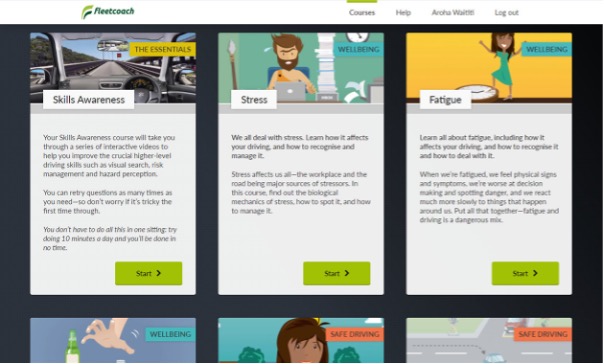
From here, you can easily access all your available courses, check your progress, and update your profile.
What you can do on the Dashboard
- Start a New Course: Click the Start button on any course card to begin.
- Continue a Course: If you’ve already started a course, click Continue to pick up where you left off.
- Redo a Course: Want more practice? Click Do again to retake a course you’ve completed.
Viewing your Progress
Each course card shows a progress bar:
Grey bar: You haven’t started this course yet.
Green and red sections (Skills Awareness courses only): Green shows questions you’ve passed, red shows those you haven’t. The mix shows your overall progress.
Green bar (other courses): Shows how much of the course you’ve finished.
Accessing Your Profile and Other Features
- Edit your profile: Click your name at the top of the dashboard.
- Return to the dashboard: Click the Courses link at any time.
- Log out: Use the Log Out button when you’re done.
Note: The courses you see depend on your organisation’s plan. Some users may have access to different sets of courses, such as Fleetcoach Wellbeing.
Accessing Fleetcoach from your LMS
If you access Fleetcoach through your organisation’s Learning Management System (LMS):
- Single Course Display: Your dashboard will show only the course you launched from the LMS. You won’t see other courses here.
- Return to LMS: The course card will include a link you can use to return directly to your LMS at any time.
- All Progress Saved: Your progress in the course is saved automatically, just as with other Fleetcoach courses.
Tip: For any other training, or to see more courses, please return to your LMS and launch a different course from there.